(Setup guide)

Connect HubSpot to Pilot by Comevaa

Pilot by Comevaa links the paid campaigns Comevaa runs for you on Meta and Google Ads to your HubSpot contacts and deals. This guide explains how to install the app, what it reads and writes, and how to disconnect or uninstall it.

Last updated: September 29, 2026

What the app does

Pilot is the platform Comevaa uses to run your campaigns. Once it is connected to your HubSpot, you see what each campaign and each ad really brings in: qualified leads, meetings and closed deals, not only clicks.

  • Pilot reads your contacts, their lifecycle stage and your deals, to calculate the cost per qualified lead, per meeting and per sale of each campaign.
  • If you allow it, every lead from a Comevaa form creates or updates a contact in your HubSpot. An existing contact is found by email and never duplicated, and an empty answer never overwrites what your team entered.
  • If you allow it, Pilot creates the contact properties that store where a lead came from (campaign, ad set, ad). It never changes their values.

Before you start, make sure you are an administrator of your HubSpot account. Pilot is available to companies whose campaigns are run by Comevaa.
Install the app

From the HubSpot App Marketplace. Click Install, choose your account and approve the permissions. The app is installed with read access to your contacts only, and Pilot reads nothing yet: your HubSpot is linked to your dashboard by your personal link, as described below.

With your personal link:

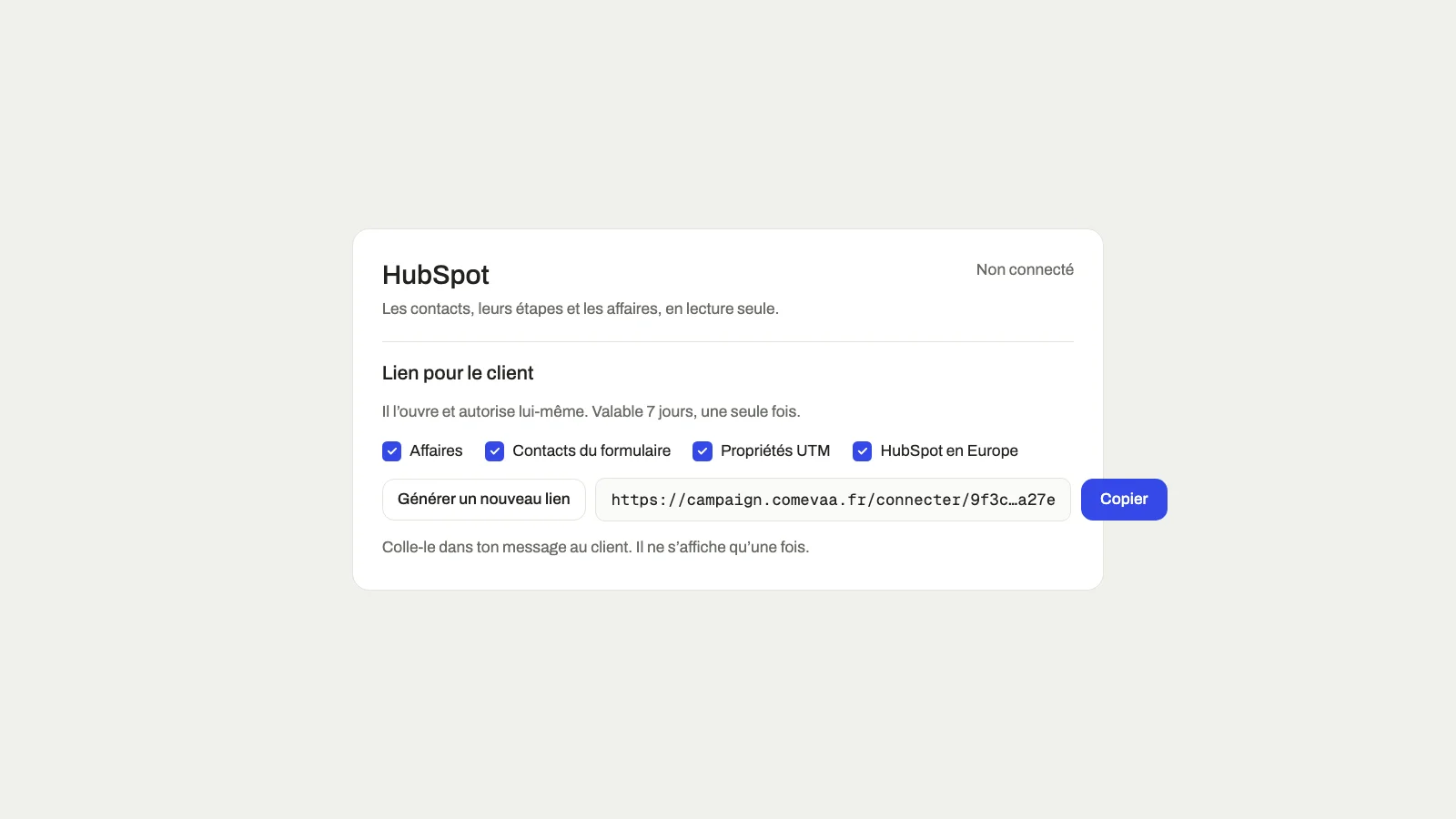
1. Get your personal link. Your Comevaa contact generates it in Pilot and chooses the permissions it asks for. The link works once and expires after 7 days.

Pilot settings where Comevaa chooses the permissions and generates the connection link
The link is generated in Pilot, in your company's settings.

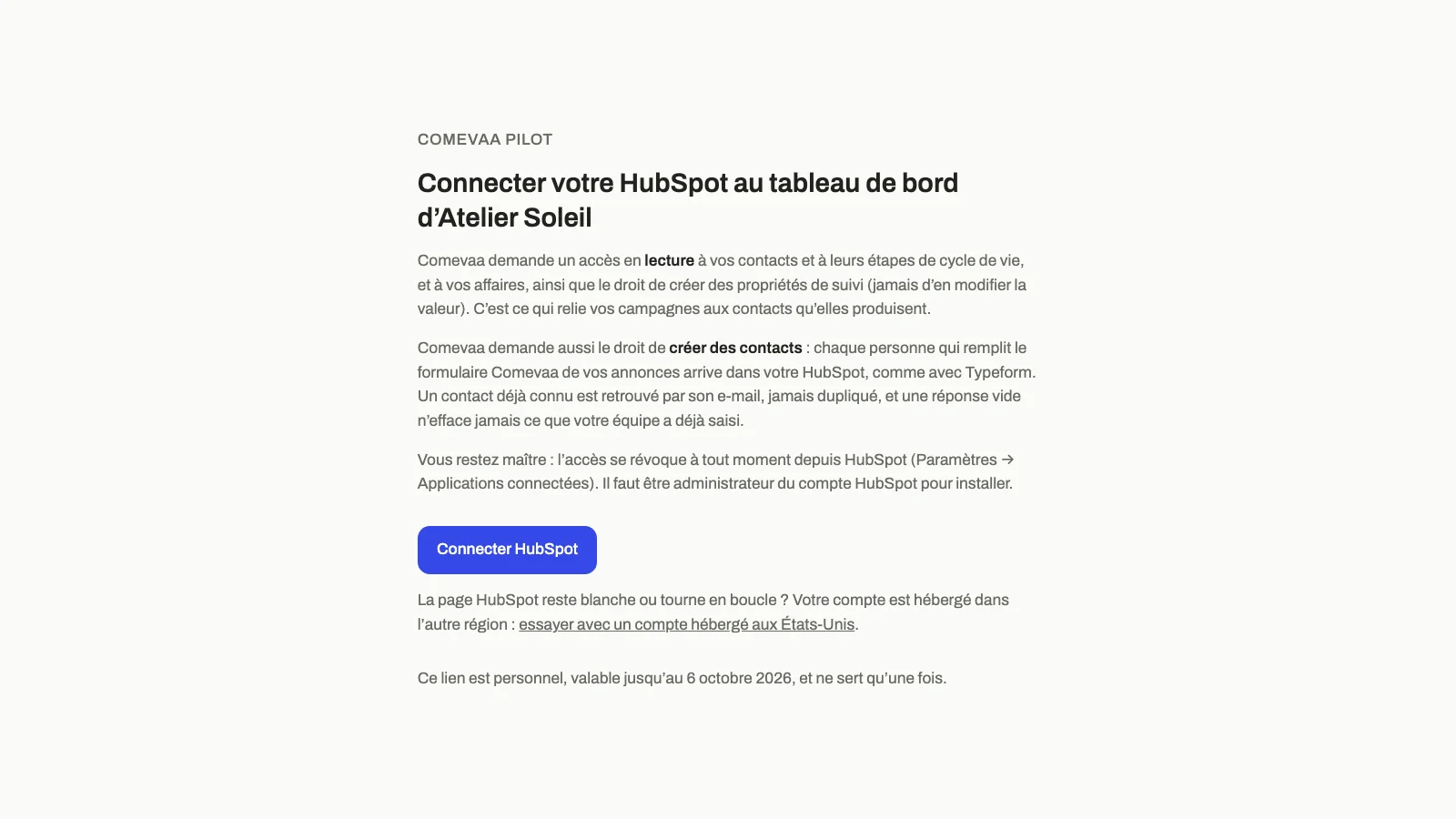
2. Open the link. The page tells you which dashboard it connects, what Pilot will read and create, and how to revoke access. Click Connecter HubSpot. If the HubSpot page then stays blank, your account is hosted in the other region (Europe or United States): use the link under the button.

The connection page listing the access Comevaa requests, with the Connecter HubSpot button

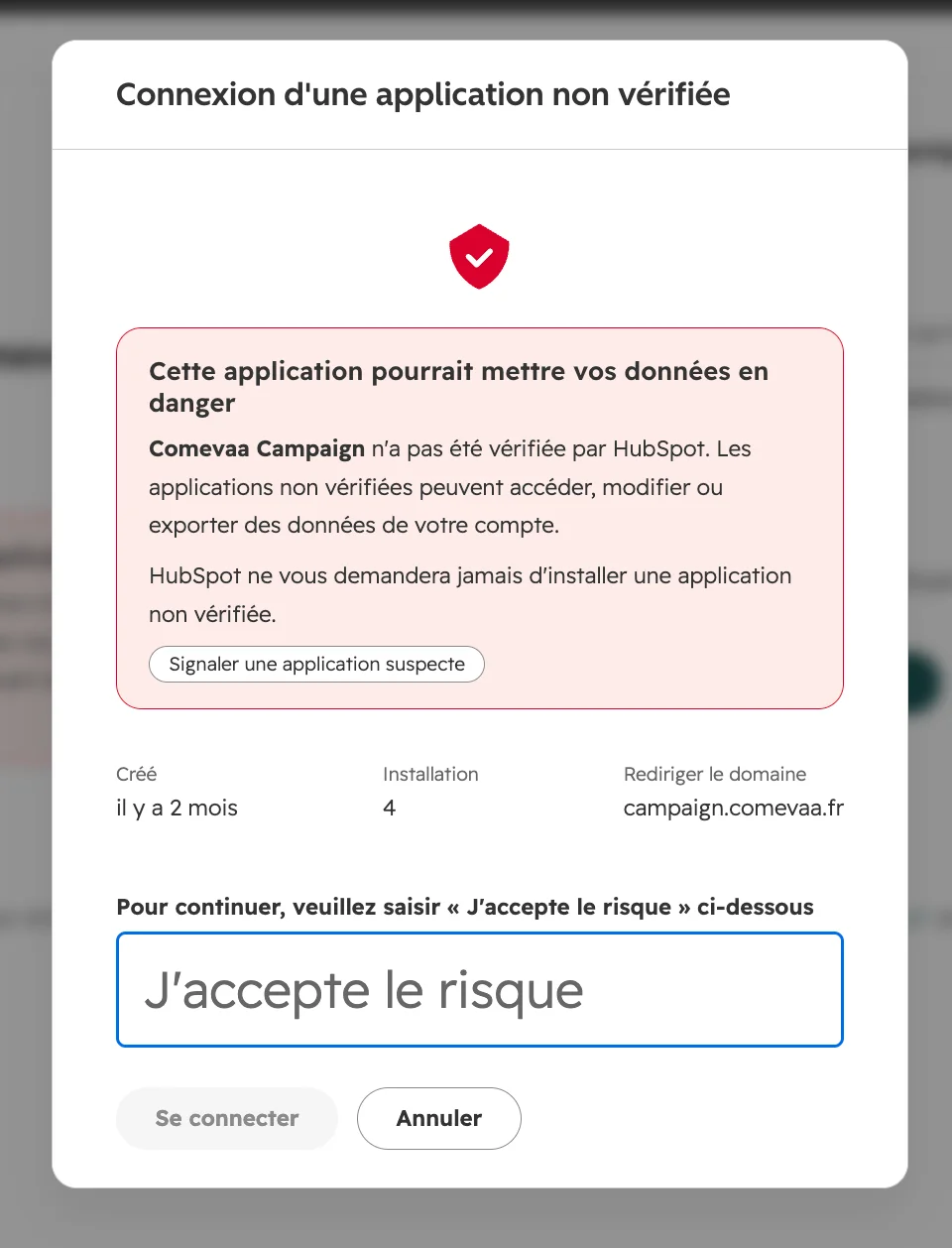
3. Choose your HubSpot account. While the app is being reviewed by HubSpot, HubSpot asks you to type a confirmation phrase before you continue.

HubSpot confirmation step asking to type a phrase before connecting the app

4. Approve the permissions. HubSpot lists what the app asks for: contacts and deals, and, if Comevaa requested them, creating contacts and contact properties. Click Connect app.

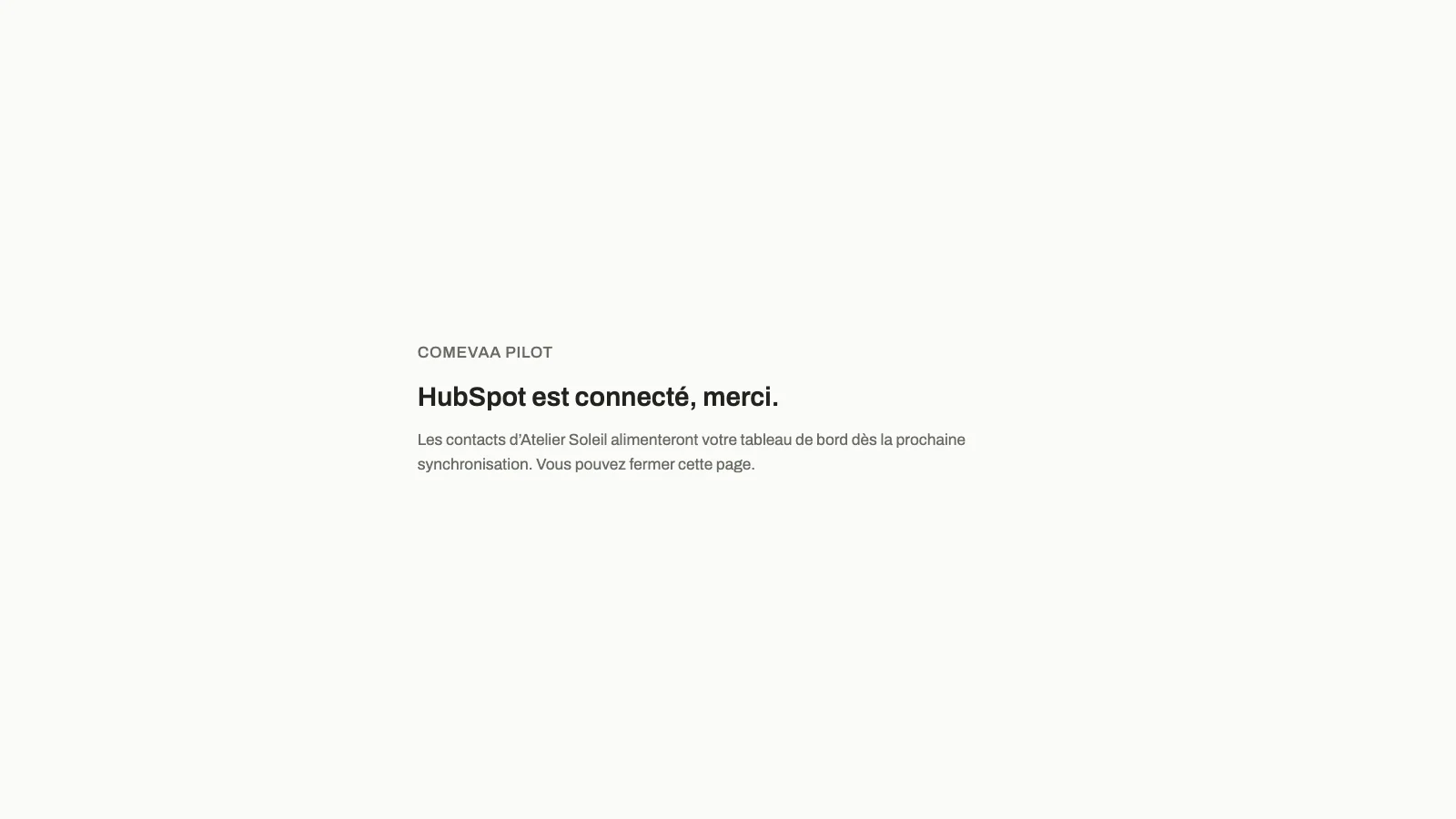
5. You are done. You are sent back to the Comevaa page, which confirms the connection. Your contacts appear in your dashboard after the next nightly sync.

Confirmation page saying that HubSpot is connected

Configure the app

Permissions are chosen when the link is generated: reading deals, creating contacts from forms, and creating tracking properties. To change them, ask Comevaa for a new link and approve it again in HubSpot.

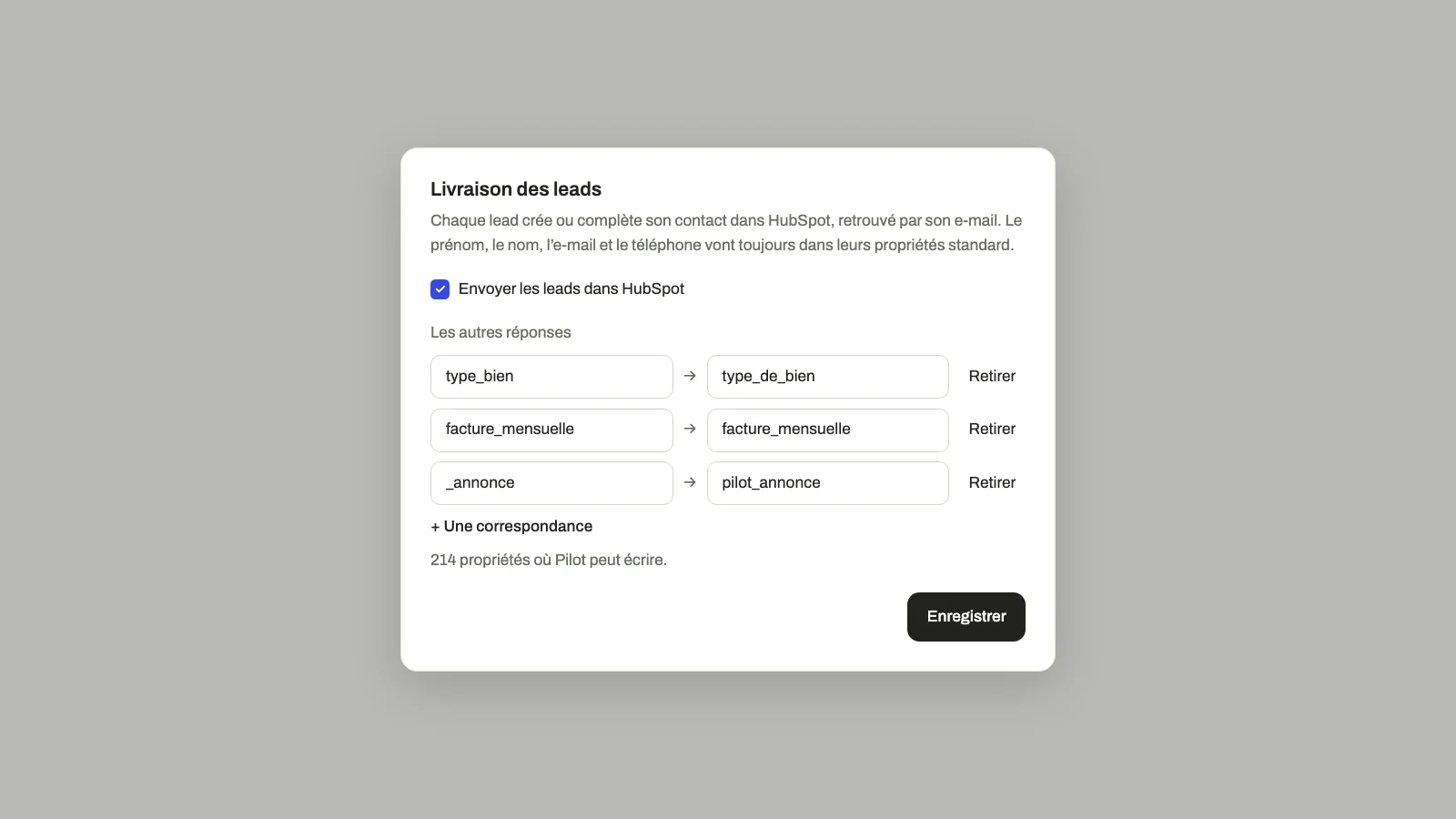
For forms, Comevaa chooses which answer goes into which contact property. First name, last name, email and phone always go to the standard properties. A property that does not exist in your account is refused before saving, so no answer is sent to the wrong place.

Lead delivery settings in Pilot, with each form answer mapped to a HubSpot contact property

What syncs, and when:

  • Contacts and deals go from HubSpot to Pilot, read every night. For each contact, Pilot keeps only an ID, a date and the source campaign, never a name, an email or a phone number.
  • Form leads go from Pilot to HubSpot as soon as the form is submitted. If HubSpot refuses or does not answer, the lead waits in Pilot, encrypted, and is retried automatically. If it still cannot be delivered, Comevaa is alerted the next morning. The answers are erased from Pilot once delivered, and after 30 days at most if they never are.

Use the app

Once connected, the app runs on its own. Form leads reach HubSpot within seconds, and every night Pilot updates the cost of each stage for each campaign.

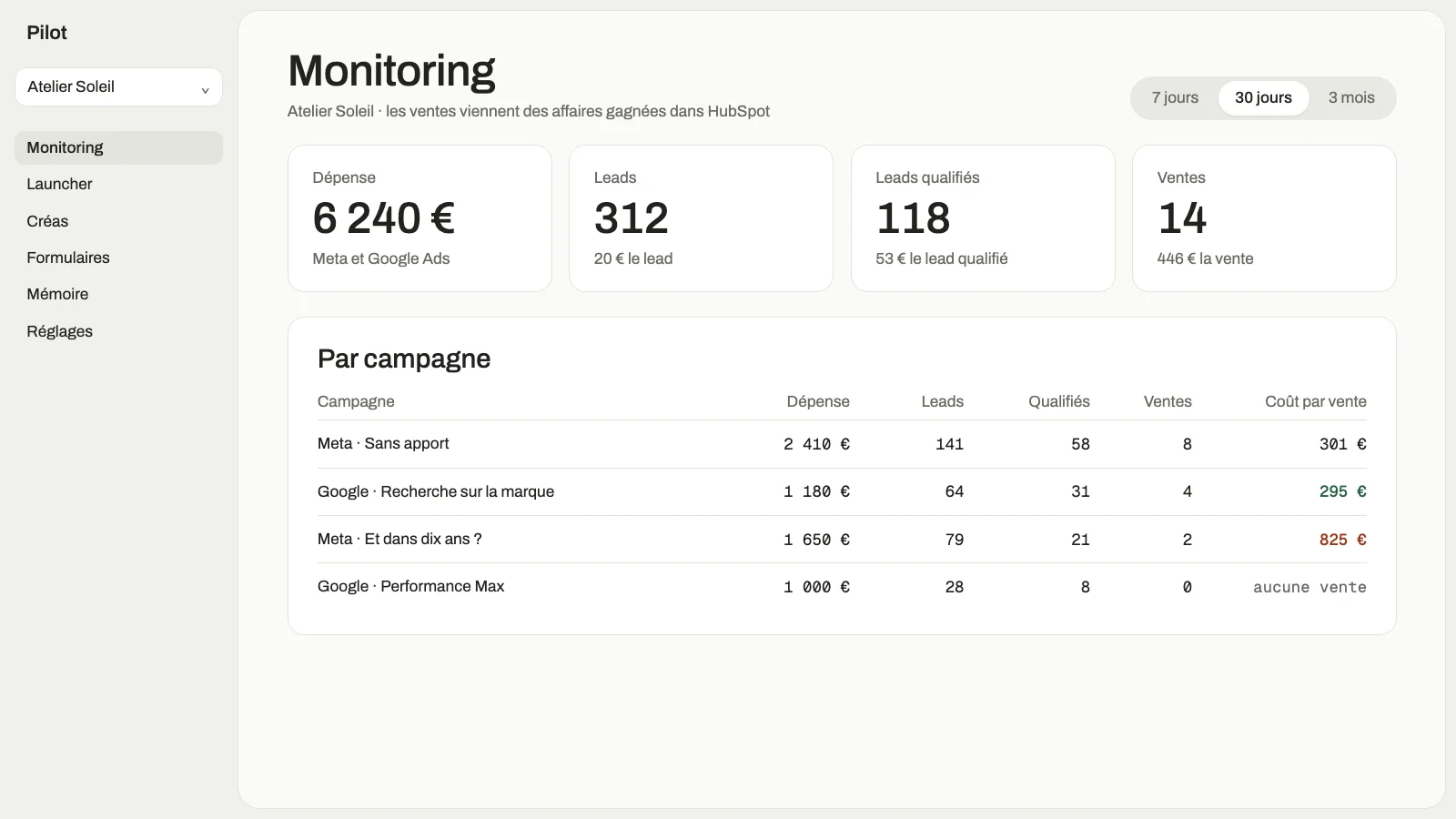
You review the results with Comevaa in your dashboard: spend, leads, qualified leads, sales and cost per sale, campaign by campaign. When a lead could not be delivered, Comevaa fixes the cause and sends it again from Pilot.

Pilot dashboard with spend, leads, qualified leads, sales and cost per sale for each campaign
Example data.

Disconnect the app

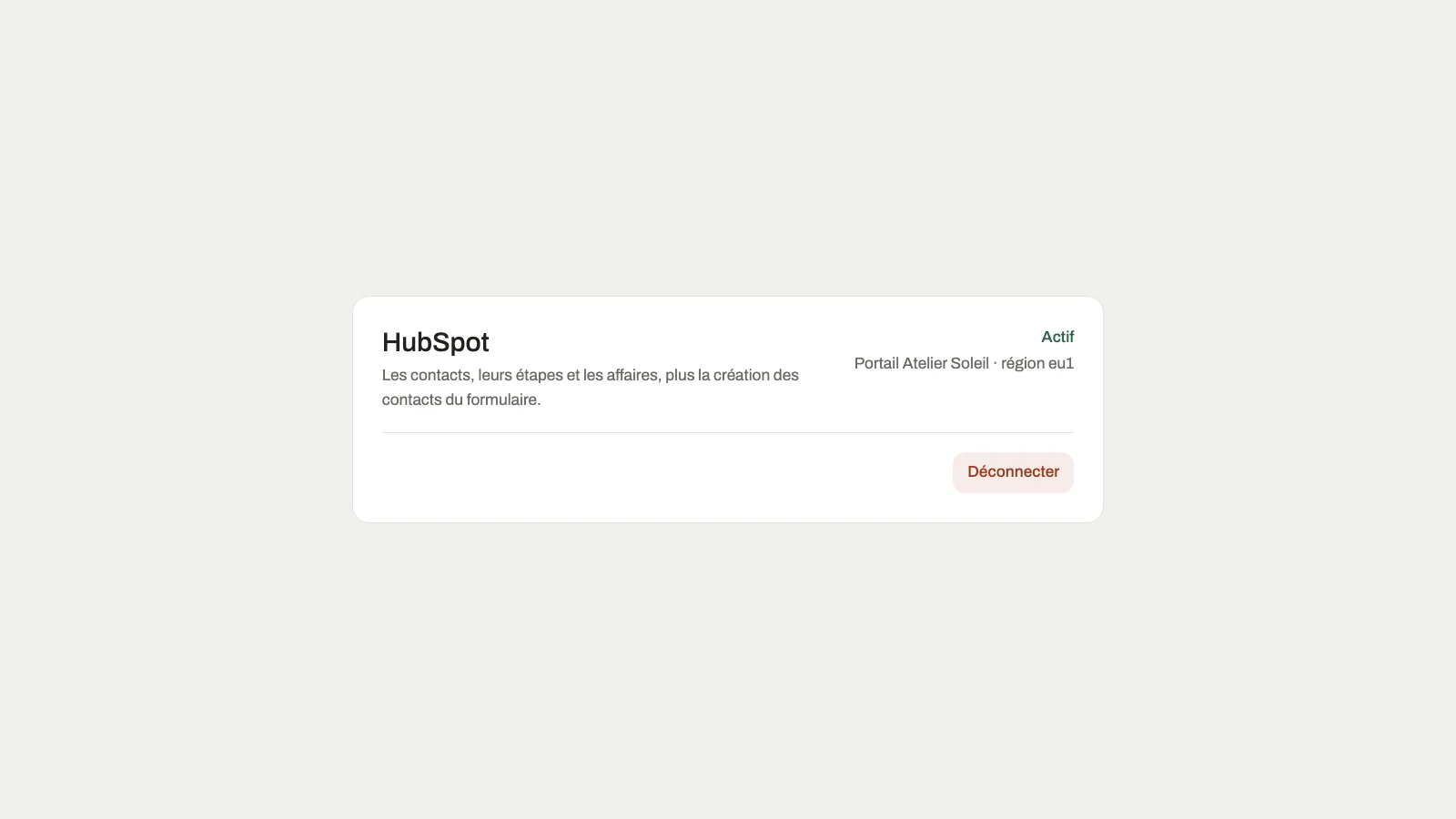
Ask Comevaa to disconnect HubSpot. Comevaa does it from Pilot, in your company's settings. Pilot deletes its access token and stops reading and writing immediately.

HubSpot connection card in Pilot with the Déconnecter button

What happens to your data:

  • Nothing is deleted or changed in HubSpot. Contacts created by forms stay in your account.
  • Figures already calculated stay in your dashboard until the end of your engagement with Comevaa, then are deleted or returned on request.
  • New form leads are no longer delivered. They wait in Pilot, encrypted, for up to 30 days: they are delivered if you reconnect, and erased otherwise.

Disconnecting in Pilot does not remove the app from your HubSpot account. To do so, uninstall it.

Uninstall the app

  1. In HubSpot, click the settings icon in the top navigation bar.
  2. In the left sidebar menu, go to Integrations, then Connected Apps.
  3. Find Pilot by Comevaa, click Actions, then Uninstall, and confirm.

Pilot stops receiving data at once and shows Comevaa that the app was uninstalled. The consequences for your data are the same as a disconnection. To connect again later, ask Comevaa for a new link.